Jelly Bubble Multiplayer Setup Guide
Couch chaos, online lobbies, and Remote Play Together for BINGOBELL's six-player cap.
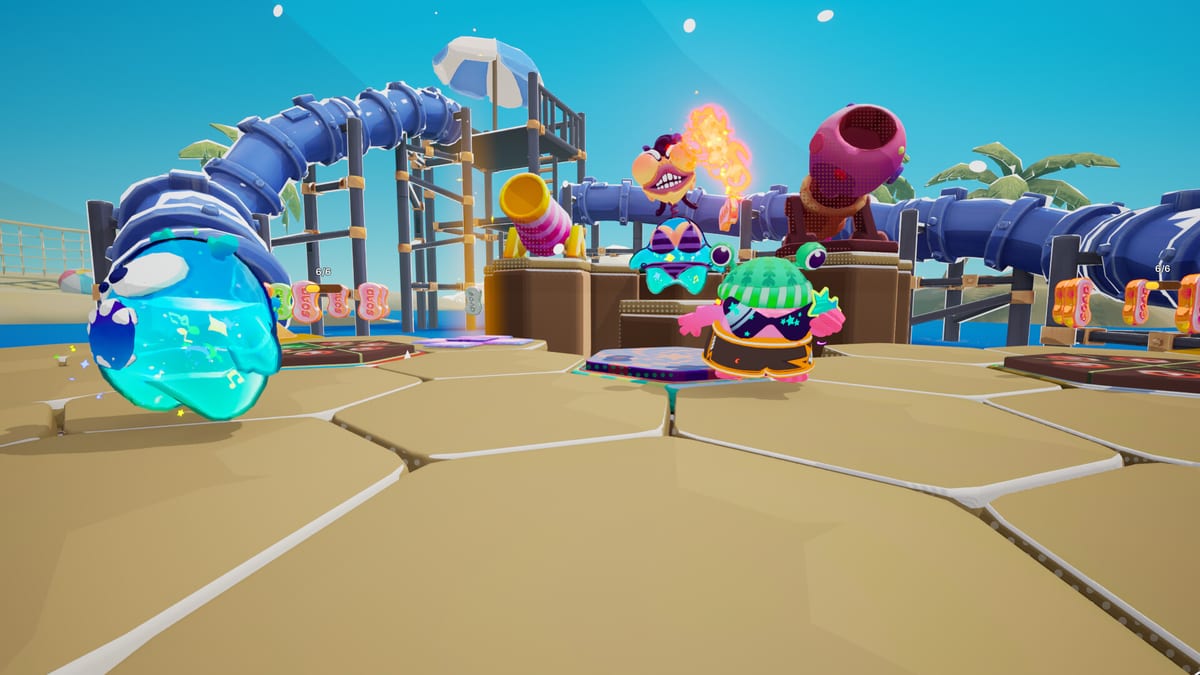
Jelly Bubble is built for groups. BINGOBELL supports 2–4 players in local split-screen, up to 6 players online, and Steam features such as Remote Play Together, Remote Play on TV, and family sharing for compatible accounts. Whether you are hosting a dorm-room couch session or filling an online lobby with friends across time zones, this guide walks through setup, player limits, and practical tips so matches start quickly instead of troubleshooting menus.
Player limits at a glance
| Mode | Player count | Best for |
|---|---|---|
| Local split-screen | 2–4 | Same PC, couch, shared screen |
| Online multiplayer | Up to 6 | Friends list, public lobbies, cross-city groups |
| Remote Play Together | Up to host limit | Friends without their own copy |
Local play cannot exceed four jellies on one machine — hardware and screen readability cap the experience. Online play adds two extra slots, which materially changes center-map brawls and scoring point camps described in Steal, Soap & Score.
Local multiplayer setup (2–4 players)
Hardware checklist
- One Windows PC meeting Jelly Bubble’s Steam specs.
- Keyboard plus controllers, or four controllers, depending on your group. The game lists partial controller support; keep a mouse nearby for lobby navigation.
- Optional USB hub if your PC has limited ports for wireless dongles.
Step-by-step couch session
- Launch Jelly Bubble from Steam on the host PC.
- Connect each player’s controller — or assign keyboard to player one and pads to others.
- Select Local Multiplayer from the mode menu.
- Confirm 2, 3, or 4 player slots in the lobby character select screen.
- Each player picks a jelly avatar and cosmetic outfit — visuals help track bubbles during color collisions.
- Choose an official map or a shared custom arena from Create Mode.
- Start the match and verify split-screen layout before enabling voice chat through Discord or Steam overlay.
Split-screen divides the display per player count. On smaller laptops, sit closer or lower resolution if text becomes hard to read — scoring point callouts matter.
Mixed input tips
When one player uses WASD while others use gamepads, confirm device assignment in the lobby. Misassigned inputs cause accidental color switches and wasted dashes. Rebind keys per player only if the game exposes per-profile settings; otherwise standardize on controllers for fairness in competitive couch nights.
Online multiplayer setup (up to 6 players)
Creating a lobby
- From the main menu, choose Online Multiplayer.
- Select Create Lobby or Host Game depending on patch wording.
- Set visibility: Friends Only for private groups or Public for randoms.
- Pick mode, map, and any soap rotation rules the host menu exposes.
- Invite friends through Steam overlay or share the lobby join code if displayed.
- Wait for up to six players to ready up, then start.
Hosts should have stable broadband — Jelly Bubble lists network as a requirement on Steam. A wired Ethernet connection reduces rubber-banding during fast double jump dash chains.
Joining a friend’s game
Accept the Steam invite or right-click your friend in the friends list and choose Join Game. If the lobby is full, six slots are taken; there is no spectator mode at launch for standard party matches. Ask the host to swap maps or kick idle players if you cannot enter.
Online etiquette for soap chaos
Six-player lobbies amplify kingmaking against the largest soap carrier. Use voice to call color switches and scoring point pushes — silent randoms often lose to coordinated trios even with weaker individual aim.
Remote Play Together
Steam Remote Play Together streams Jelly Bubble from the host PC to friends who do not own the game. The host launches a session, invites remote guests through Steam, and guests receive virtual controllers or keyboard passthrough depending on settings.
When Remote Play works well
- One friend owns Jelly Bubble; three remote friends want a couch-style night without buying four copies.
- Latency is acceptable between host and guests — party physics tolerates minor delay better than frame-perfect fighters, but deposit timing at the scoring point still suffers on bad connections.
- Host upload bandwidth is sufficient; 10 Mbps upload per guest is a reasonable planning figure on congested networks.
Remote Play limitations
- Guests depend on host PC uptime and performance — if the host tabs out or CPU throttles, everyone stutters.
- Partial controller support quirks apply to both local and remote players; guests should test inputs in lobby before competitive modes.
- Remote Play does not replace dedicated online servers for six distinct owners — use standard online lobbies when everyone has a copy.
Enable Remote Play Together from the Steam overlay while in-game, or right-click Jelly Bubble in your library under Manage → Remote Play Together settings if available on your client version.
Remote Play on TV and family sharing
Steam also advertises Remote Play on TV for living-room setups where the host PC streams to a Steam Link device or compatible TV app. Family sharing lets linked accounts play Jelly Bubble if the primary owner is not currently in another session — verify sharing eligibility in Steam family settings before planning a shared-library party night.
Steam Cloud and achievements
Jelly Bubble includes Steam Cloud saves and 10 achievements. Cloud sync preserves customization and progress across PCs — useful when the same person hosts sometimes on a laptop and sometimes on a desktop. Achievements track milestones such as match wins, editor creations, and soap collection feats; they do not affect multiplayer balance.
Voice chat recommendations
In-game chat exists per Steam store tags, but most groups prefer Discord or Steam voice overlay. Call out:
- Color switches before scoring point rushes.
- Rare soap spawns and carrier direction.
- Map hazards on custom trampoline layouts from the Map Editor guide.
Clear comms beat raw mechanics when six jellies collide at the deposit pad.
Troubleshooting common setup issues
| Problem | Likely fix |
|---|---|
| Controller not detected | Reconnect pad, verify Steam Input, fall back to keyboard for lobby |
| Friend cannot join online | Check lobby privacy, firewall, and that fewer than six players are connected |
| Remote Play input lag | Host wired network; guests lower stream quality in overlay settings |
| Split-screen too small | Lower resolution or use a larger monitor; four-player split is dense by design |
| Wrong player assigned to pad | Re-enter lobby and reassign devices before match start |
If issues persist, verify game files through Steam and confirm Jelly Bubble is updated to the latest BINGOBELL patch on Updates.
Choosing the right mode for your group
- Four or fewer in one room → local split-screen for lowest latency trash talk.
- Five or six spread across cities → online lobbies with everyone owning a copy.
- Mixed ownership → host uses Remote Play Together for guests without keys.
- Long-term community → combine online nights with shared custom maps built in Create Mode.
Related guides
Once multiplayer works, improve win rate with Getting Started, Controls, Color Mechanics, and Steal, Soap & Score. Multiplayer setup is the enabler; those pages teach the skills that make six-player lobbies memorable instead of frustrating.
Frequently Asked Questions
Quick answers to the most common questions.
How many players can play Jelly Bubble locally?
Local split-screen supports two to four players on one PC with shared or mixed keyboard and controller inputs.
What is the online player limit?
Online multiplayer supports up to six players in a single lobby.
Does Jelly Bubble support Remote Play Together?
Yes. Steam Remote Play Together lets a host stream the game to friends who do not own a copy, with virtual controller passthrough.