Jelly Bubble Controls
Keyboard, controller, and movement tech for BINGOBELL's party brawler.
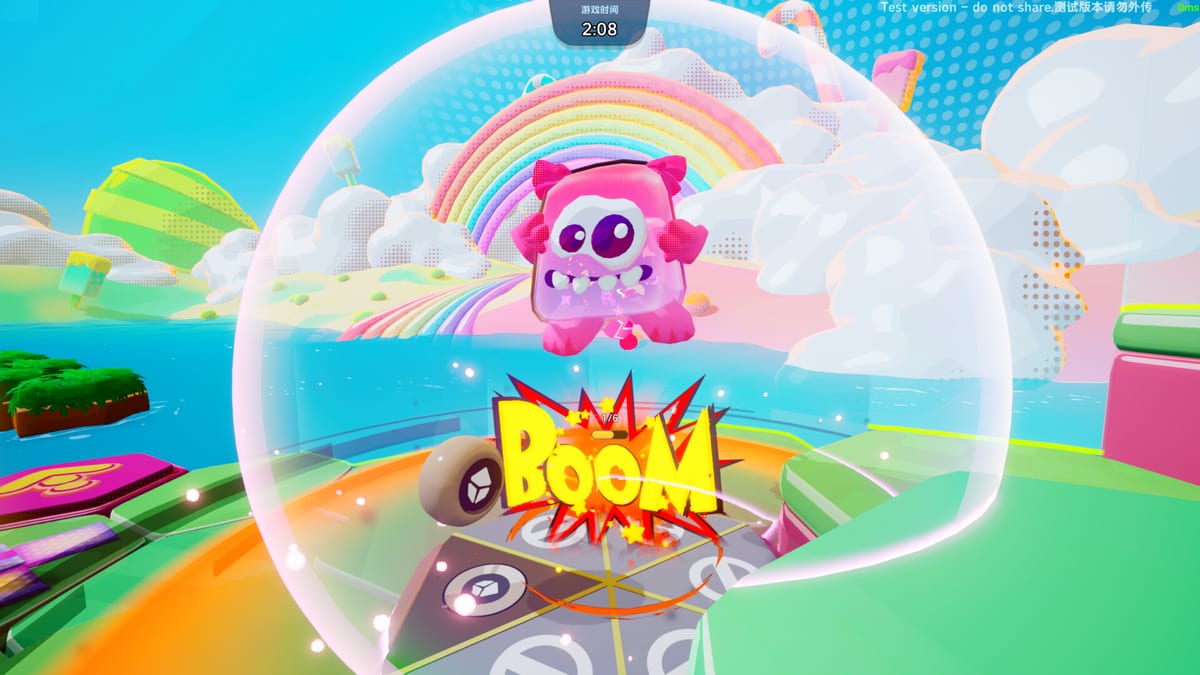
Jelly Bubble is built for fast, readable inputs: you move constantly, switch colors on reaction, and chain dashes into steals or escapes. BINGOBELL lists partial controller support on Steam, meaning most gameplay works on a gamepad but some menus and editor tools still favor keyboard and mouse. This page documents default bindings, remapping options, and how each action connects to the Color Mechanics and Steal, Soap & Score systems.
Keyboard controls (default)
These are the standard PC bindings at launch. Open Settings → Controls in-game to confirm or rebind any action.
| Action | Default key | Notes |
|---|---|---|
| Move | W A S D | Camera-relative movement on flat arenas |
| Jump | Space | First jump from ground or platform |
| Double jump dash | Space (mid-air) | Second press launches a forward aerial burst |
| Dash | Left Shift | Ground burst; shorter than double jump dash |
| Dive | Left Ctrl | Downward slam; disrupts nearby jellies |
| Color switch | Q | Toggles hue for attract/repel collisions |
| Use soap ability | E | Activates equipped soap effect when available |
| Interact / confirm | F | Pickups, scoring point deposit, editor placement |
| Pause / menu | Escape | Opens pause and settings |
Movement and color switching should become muscle memory before you worry about advanced soap abilities. New players often rebind color switch to a thumb-friendly key such as C or Tab if Q feels awkward during WASD play.
Controller controls (partial support)
Gamepad layouts follow common party-game conventions. Steam Input can override these per device.
| Action | Xbox layout | PlayStation layout |
|---|---|---|
| Move | Left stick | Left stick |
| Jump | A | Cross |
| Double jump dash | A (mid-air) | Cross (mid-air) |
| Dash | X | Square |
| Dive | B | Circle |
| Color switch | Y | Triangle |
| Use soap ability | RB | R1 |
| Interact | X (hold near object) | Square (hold) |
| Pause | Menu | Options |
Partial support means lobby invites, text entry, and portions of the Map Editor may require a mouse. For couch play with four local pads, assign each player a controller slot in the pre-match lobby before starting.
Movement tech explained
Understanding what each input does mechanically helps you chain actions during soap runs.
Dash
Dash is your baseline burst. It closes distance for same-color merge attempts, reaches ground soap before opponents, and escapes after depositing at the scoring point. Dash has a short cooldown — spamming it leaves you slow and vulnerable to repel collisions.
Double jump dash
BINGOBELL added double jump dash after playtests showed standard dash alone felt limited for vertical maps. Press jump twice while airborne to launch farther and faster than a ground dash. Use it to cross trampoline gaps, intercept carriers mid-air, or reach elevated soap spawns. Pair it with a late color switch to repel off a chaser at the apex of your arc.
Dive
Dive is a downward commitment move. It knocks nearby jellies off balance and can strip soap from careless carriers. Because dive ends low to the ground, follow with an immediate dash toward the scoring point if you secure loot. Avoid diving into a same-color merge you did not intend — you may stick and lose everything.
Color switch in combat
The color switch button is not cosmetic. It rewrites the next collision outcome:
- Switch to match a target when you want to attract, merge, and steal.
- Switch to mismatch when you need a repel bounce off a pursuer or wall.
Inputs must lead outcomes by a fraction of a second because collisions resolve quickly in six-player lobbies. Practice switching before contact, not after. Deep strategy lives in Color Mechanics.
Local multiplayer controller assignment
For 2–4 player couch sessions, Jelly Bubble assigns one keyboard or controller per jelly in the lobby. Mixed setups — two pads plus keyboard — work but require each player to confirm their device in the character select screen. See Multiplayer Setup for split-screen layout and Remote Play Together notes when friends join online from one host PC.
Rebinding and accessibility
All combat actions can be remapped in settings. Consider these adjustments:
- Move color switch closer to movement keys if you play without a gamepad.
- Swap dash and dive if your keyboard layout makes Left Ctrl awkward.
- Increase camera sensitivity on large custom maps with long sight lines.
- Enable controller vibration for collision feedback if supported by your pad.
Steam Input profiles let you share layouts across devices; export a profile after tuning bindings for your group’s regular play night.
Controls in Create Mode
The map editor uses additional bindings for placing trampolines, speed boost pads, platforms, and hazards. Expect mouse look, scroll wheel or keyboard nudge keys for object rotation, and F or left-click to confirm placement. Full editor workflow is documented in Map Editor. If you only play custom maps others built, you can ignore editor bindings entirely.
Quick reference for new players
If you remember nothing else from this page:
- WASD + Space + Shift handle 80% of movement.
- Q (or your rebind) wins fights more often than raw dash spam.
- Double jump dash is for distance; ground dash is for tight dodges.
- Dive disrupts carriers — use it before they reach the scoring point.
- Partial controller support is fine for matches; keep a mouse nearby for menus.
Return to Getting Started for the full first-match loop, or jump to Steal, Soap & Score once your hands catch up to your plan.
Frequently Asked Questions
Quick answers to the most common questions.
Does Jelly Bubble have full controller support?
Steam lists partial controller support. Core gameplay works on gamepad, but some menus and map editor tools still expect keyboard and mouse.
How do I perform a double jump dash?
Press jump once to leave the ground, then press jump again mid-air to launch a longer forward dash through the air.
Can I rebind the color switch button?
Yes. Open Settings, navigate to Controls, and rebind color switch to any key or gamepad button you prefer.